Screenshots
Real screenshots of Abora OS v4.0 EVEREST across all major desktop environments and system interfaces.
Desktop Environments
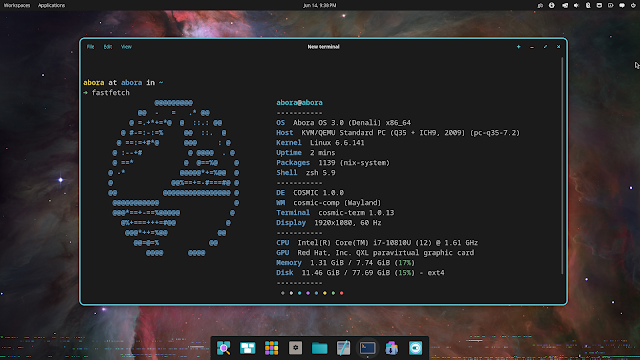
COSMIC 1.0.0
Wayland, 1920×1080
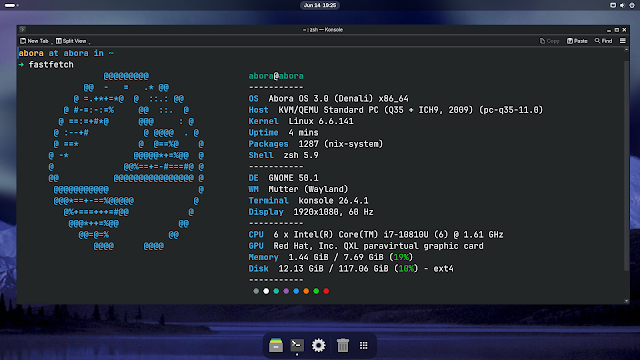
GNOME 50.1
Mutter Wayland, 1920×1080
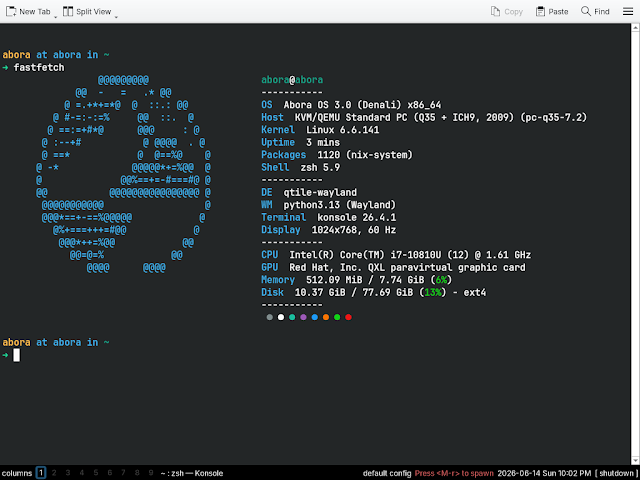
Qtile
Python 3.13, Wayland, 1024×768
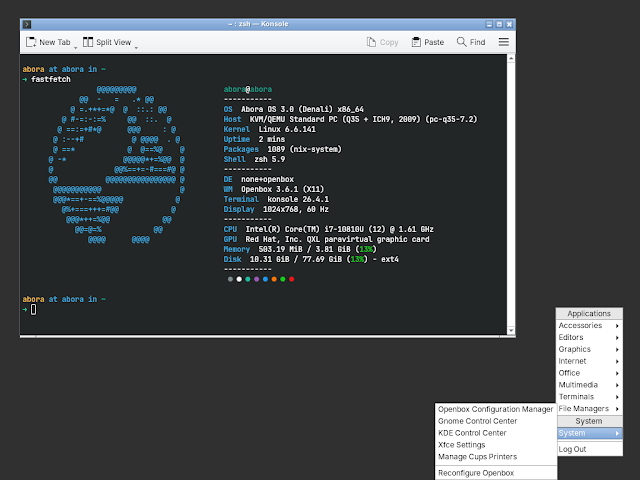
Openbox 3.6.1
X11, floating window manager
First Boot & Setup
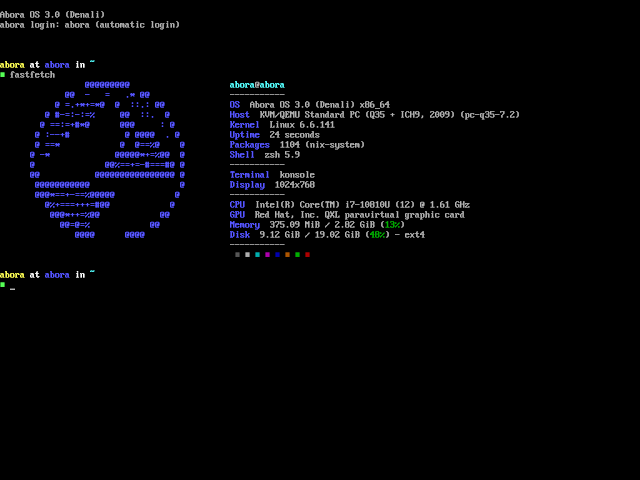
TTY Boot
Auto-login with fastfetch output
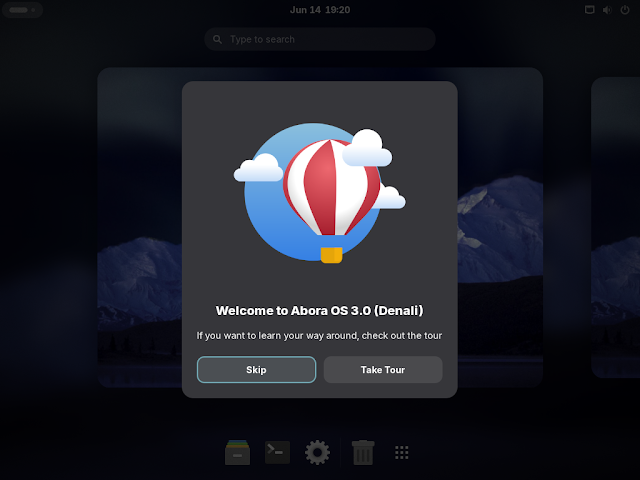
Welcome Dialog
First boot greeting with tour option
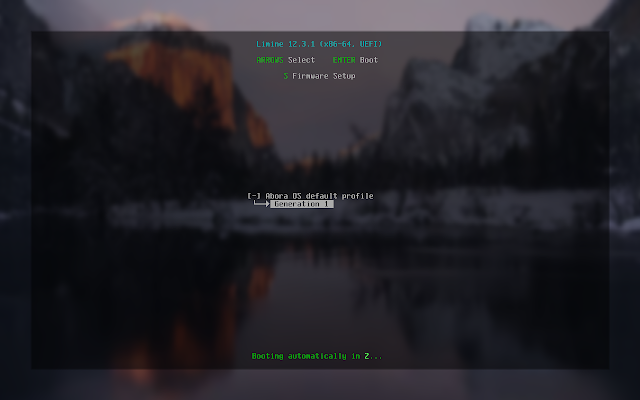
UEFI Boot
Kernel initialization
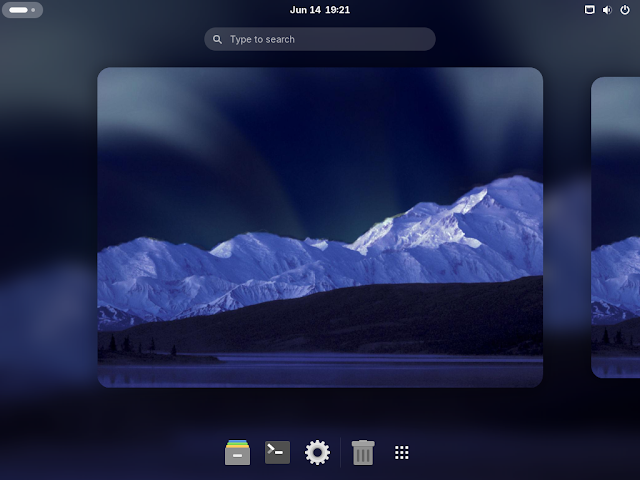
Activities Overview
Workspace management
Installation Wizard
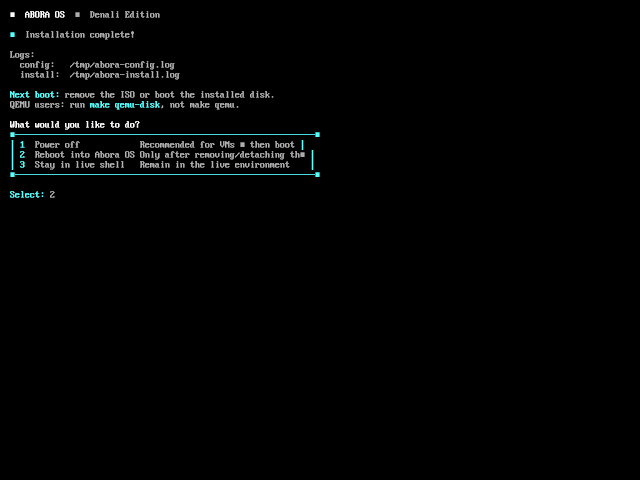
Step 1: Welcome
Begin Everest installation
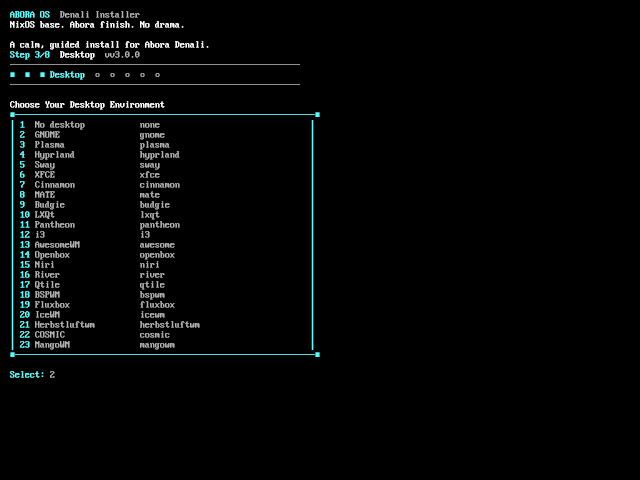
Step 2: Desktops
Choose from 23 DEs/WMs
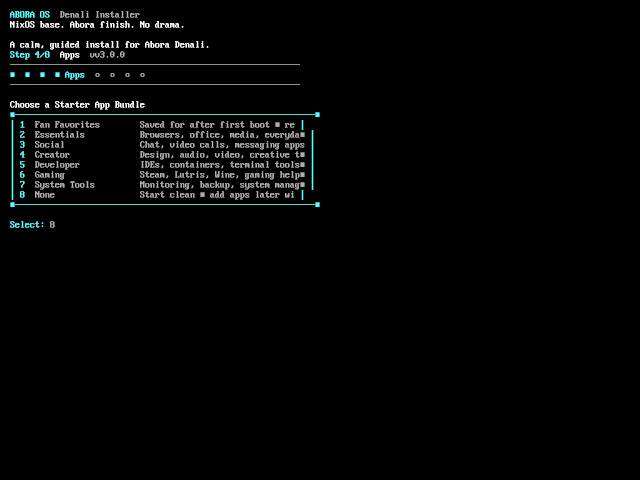
Step 3: Apps
8 starter bundle options
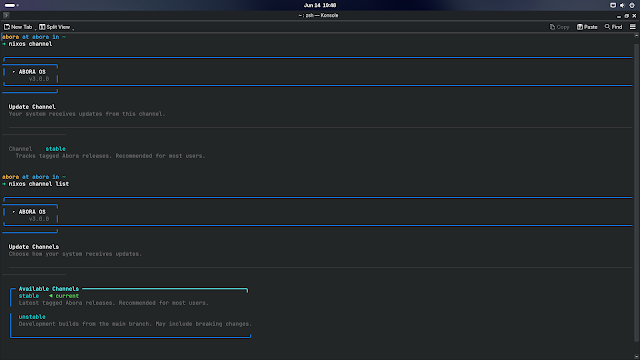
Step 4: Channels
Stable or unstable
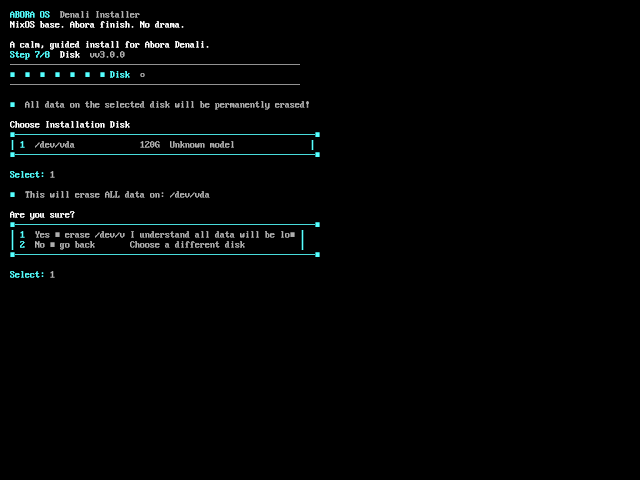
Step 5: Disk
Choose target disk
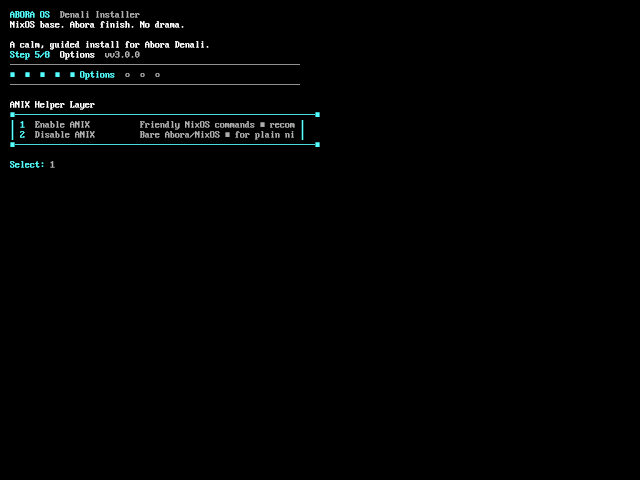
Step 6: ANIX
Enable helper layer
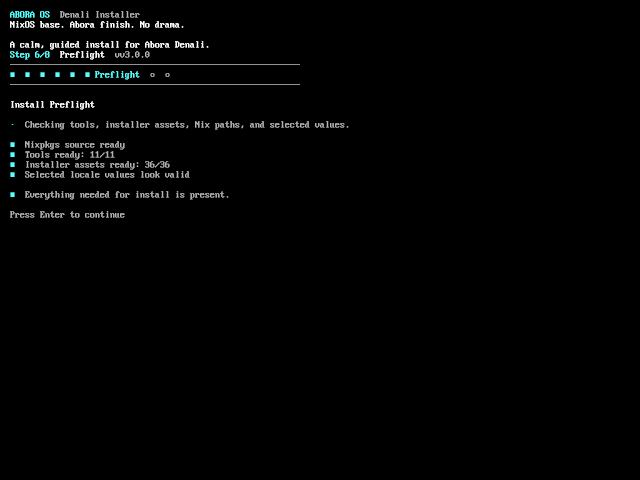
Step 7: Preflight
System validation
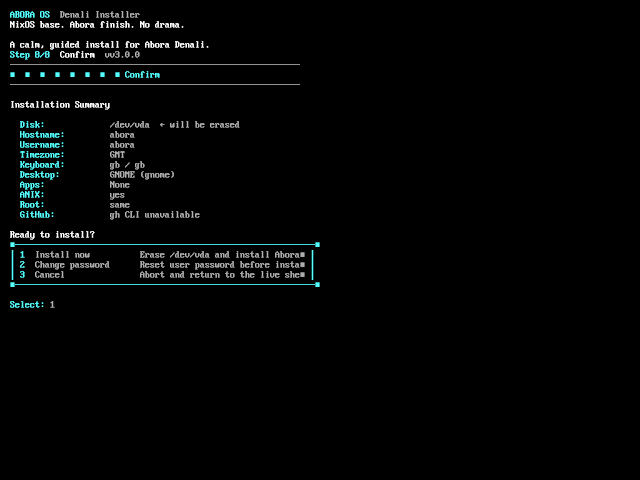
Step 8: Summary
Review before install
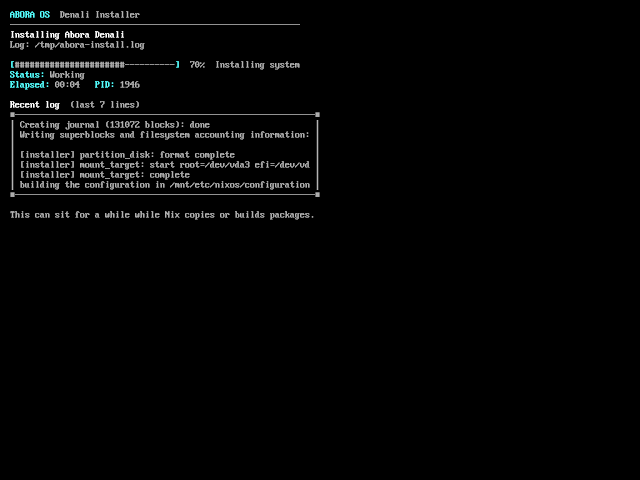
Step 9: Progress
70% installation complete
System Tools & Menus
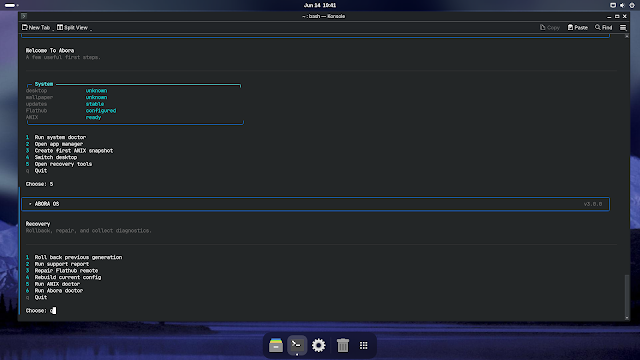
Abora CLI
Main command menu
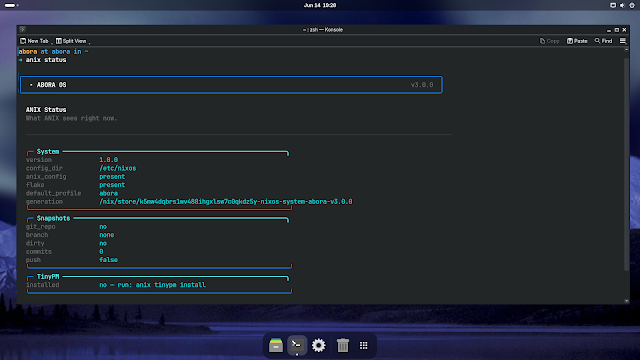
ANIX Status
System information
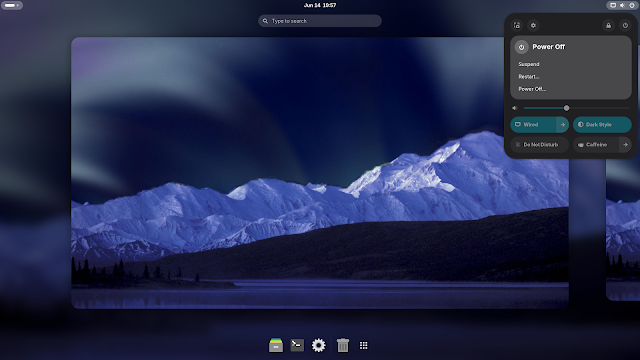
Power Menu
Suspend, restart, shutdown
App Launchers
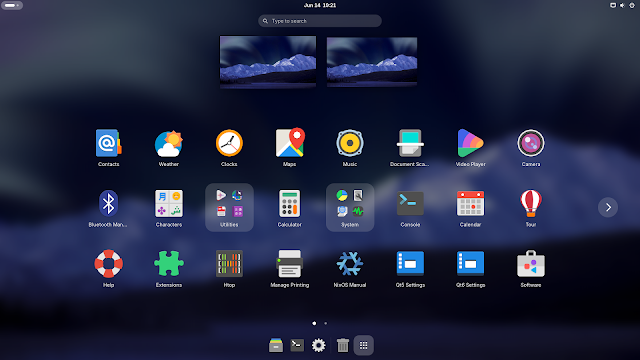
Grid Launcher
Full app grid view
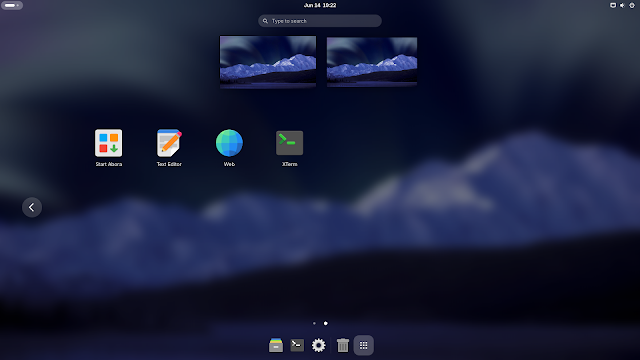
App Carousel
Quick app access
System Information
Version
Abora OS 4.0 EVEREST
Based On
NixOS Unstable
Available DEs
23 Environments